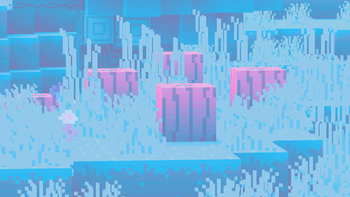
Showcase
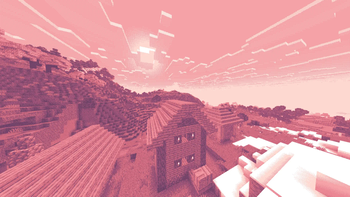
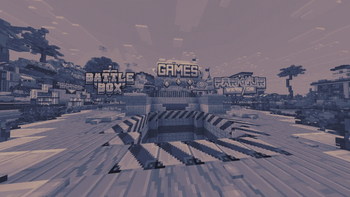
This image was taken using a monochromatic color palette on color mode 0 (Closest Luminance)
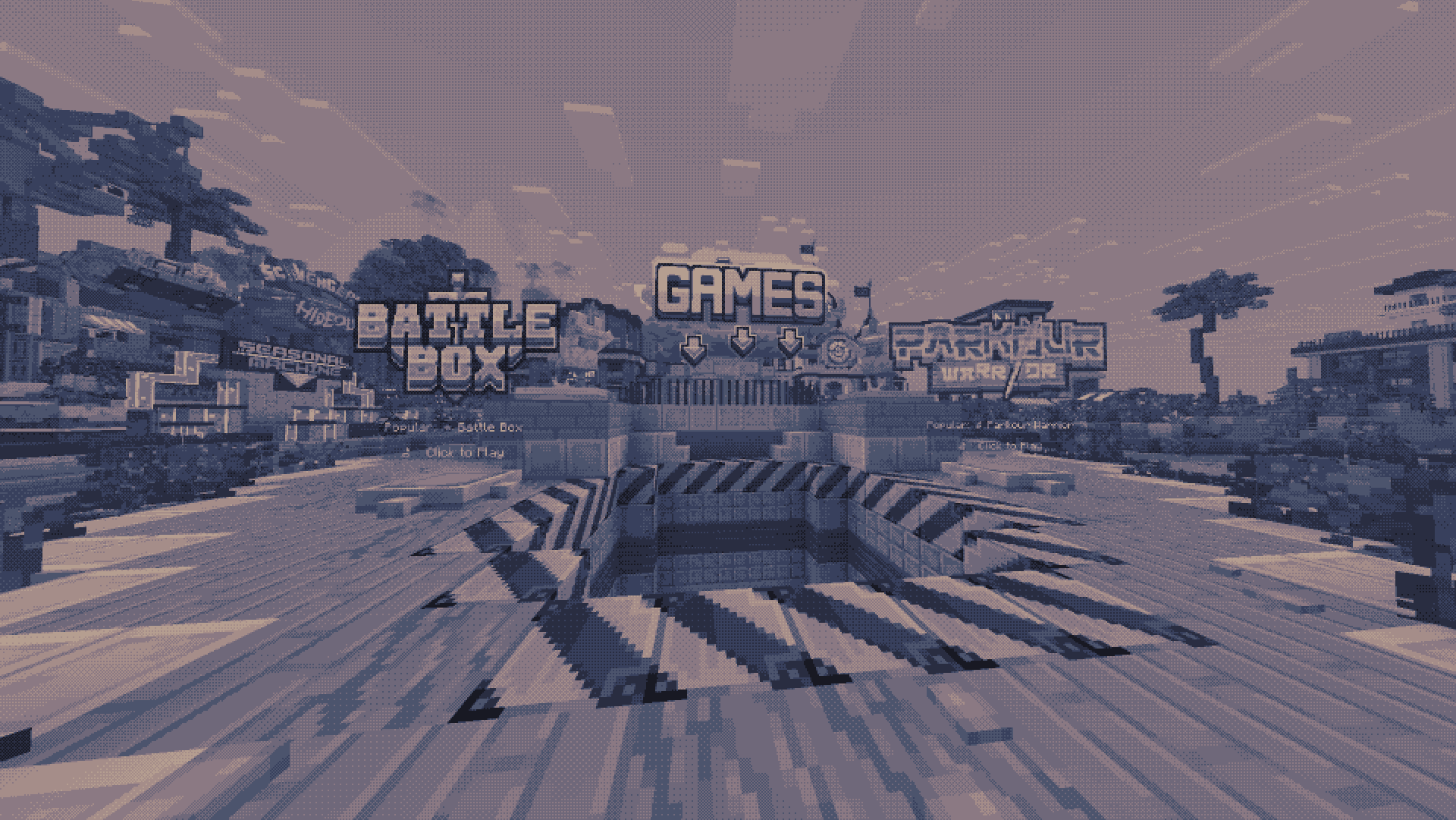
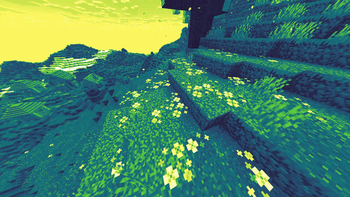
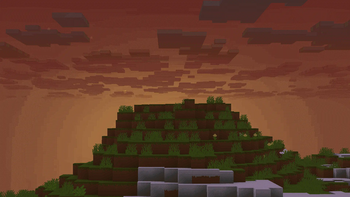
This image was taken using a polychromatic color palette on color mode 1 (Closest Color)
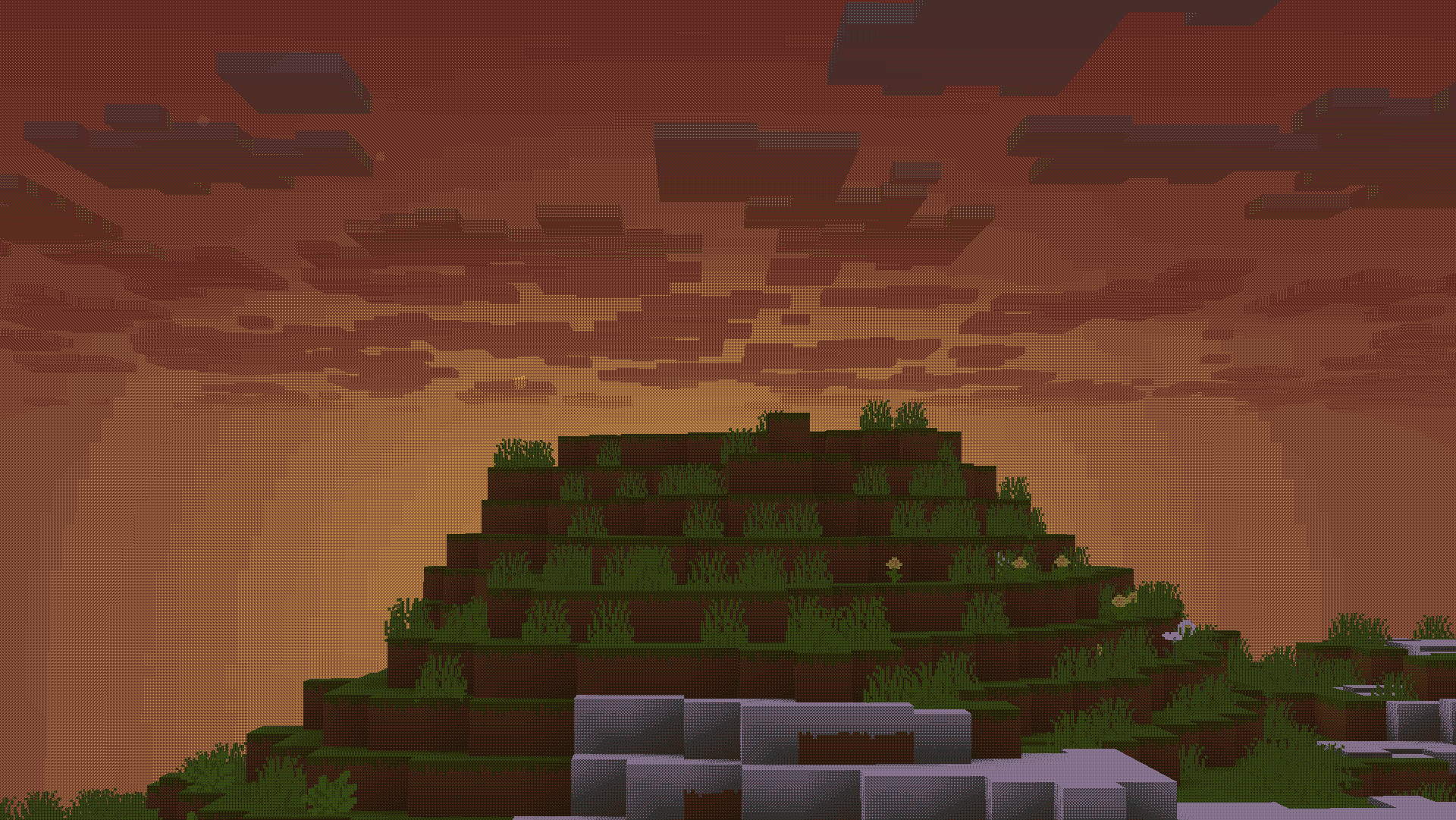
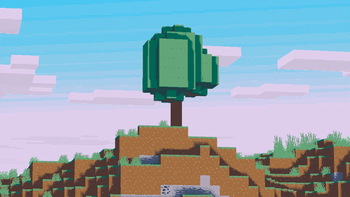
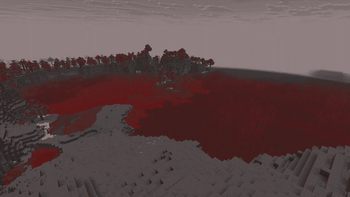
There are more images to show you what the pack looks like, all you need to do is go look at the gallery
Description
This is a texture pack that allows you to make Minecraft use whatever color palette you want. You can have up to 32 colors in a single palette, which may get expanded upon in a future update. You can use respackopts if you want an easier experience configuring the pack, but it's entirely possible (and quite simple) to do without it. You can find instructions on using the pack below, for both with respackopts and without.
This texture pack was inspired in part by Acerola's video about color. I recommend you give it a watch, because very near the beginning it shows both how this pack works in concept, and it's also very interesting. Note that this pack is not a LUT (Lookup Table) pack, and instead chooses the colors in real time using one of two color modes.
How to Use (No Respackopts)
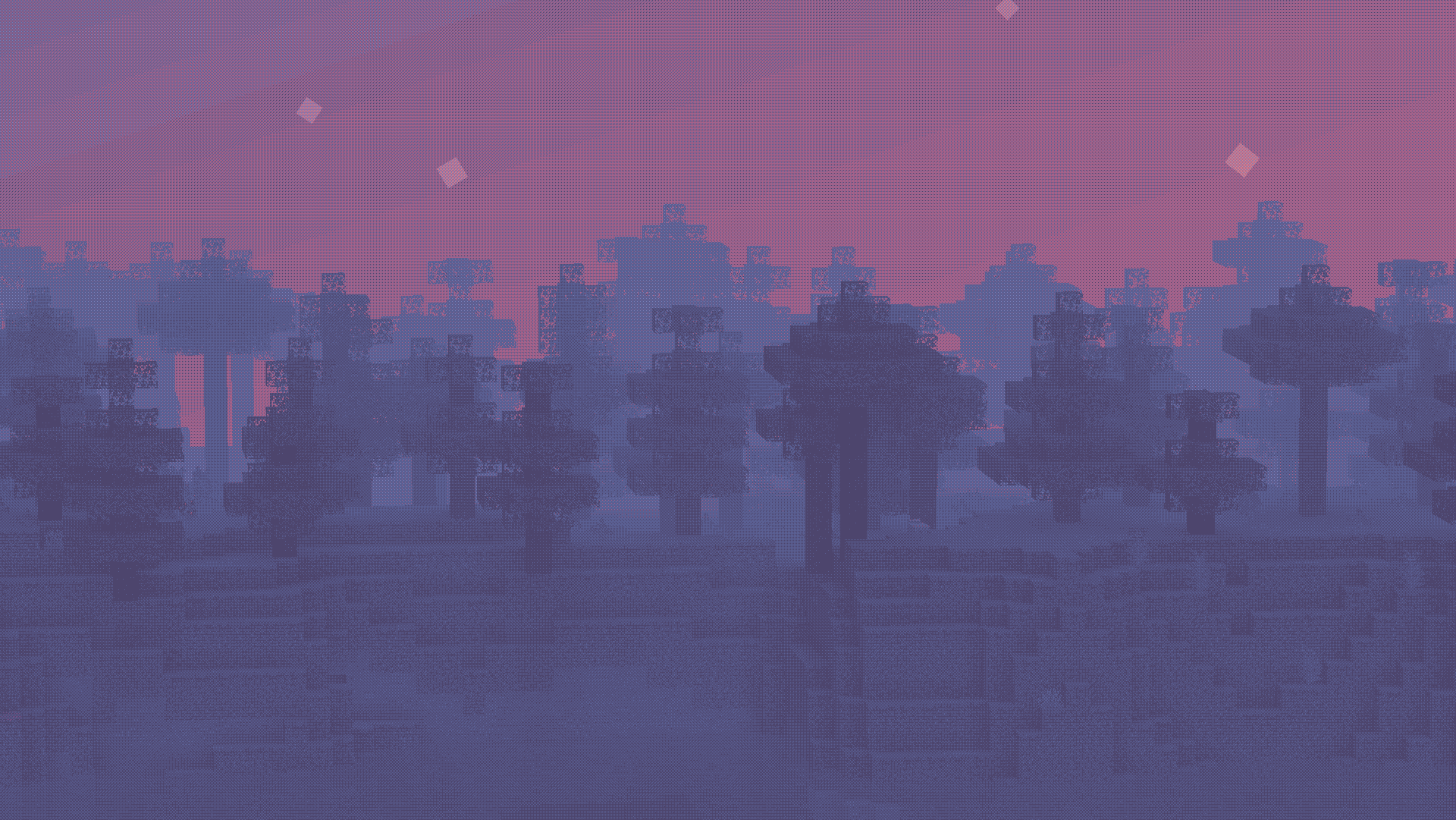
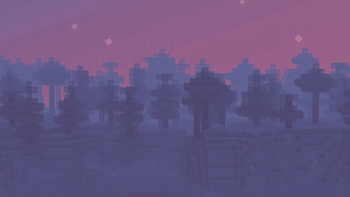
- Install and apply the pack as normal. By default, it will be using the Starry color palette with Dither Mode 2, which you can see a preview of here
- In order to configure the pack, you must open the resourcepack. Once you are in, click on
assets,minecraft,textures,effect. This is where you will find all the palettes that are included by default, and also where you can add your own. Palettes should be sized anywhere from1x1to32x1, and you can find many premade palettes on Lospec. Just make sure you download thePNG Image (1x)version of whatever palette you want. - After importing your preferred palette, you need to apply it. For this, go back to the start of the texture pack. If you are on 1.21.2 or above, go into
(your version),assets,minecraft,post_effect, thentransparency.json. If you are on 1.21.1 or below, go into , , , , , then . For both versions, you must then press on your keyboard and search up . You will replace that with the name of your palette. Note that you cannot include spaces, so you should probably replace them with an underscore. You do not need to change the width of the texture, just leave it as is.